
Find Where Your Seed Phrase Was Stored – Before You Give Up
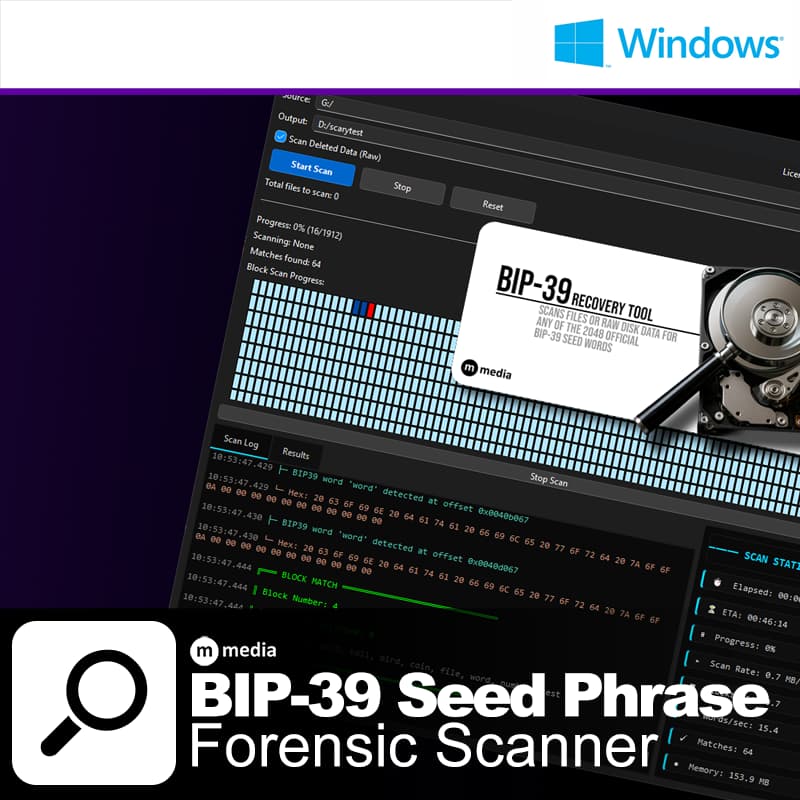
BIP-39 Recovery Tool is a Windows application that scans files and raw disk sectors for BIP39 seed words. If your seed phrase was ever written to a drive – in a text file, a notes app, a browser export, a wallet backup, or anywhere else – the bytes are still on that drive somewhere, even if the file was deleted. This tool finds them.
Everything runs locally. No data leaves your machine; not your file paths, not your matched words, not your drive contents. There are no network calls in the scanning engine, no telemetry, no logging to any server. When you’re looking for a seed phrase, the last thing you need is software that logs what it finds.
It does one thing and does it well: systematically narrows even a multi TB drive down to a short list of files and disk sectors worth a human look, in a fraction of the time it would take to open hundreds of sectors or files manually.
What It Scans
- Files and directories – scans .txt, .ini, and text-like files recursively through any folder; copies matched files to your output directory with a CSV report
- Raw disk sectors – reads every byte of a drive using the Windows raw device API, including unallocated space and space from deleted files; produces a block-by-block progress grid and saves partial results if you stop early
What It Does Not Do
- Does not brute-force or guess missing words
- Does not connect to any blockchain or network
- Does not recover wallets directly
- Does not guarantee you’ll find anything – recovery depends on whether the data is still present on your drive
The BIP39 wordlist is plain English. Expect false positives – ordinary text files will match several words. A genuine seed phrase will stand out as a sequence of unrelated short words with no sentence structure around them. The tool narrows the search down; you do the final verification.
Raw Disk Scanning – How It Works
The tool reads every sector on a drive in 1MB blocks using the Windows CreateFileW/ReadFile API against the physical device path. This finds data that has been deleted, emptied from the Recycle Bin, or that was never in a file at all. It requires Administrator privileges and is blocked by design from running on C:/ to avoid an unusable flood of false positives from system files.
On SSDs, recovery may not be possible depending on TRIM and wear-leveling behavior. On spinning hard drives, recovery is more likely if the drive has not been heavily used since deletion.
Privacy
- No telemetry – the application does not collect, log, or transmit file
paths, scan results, or any content from your drive - All scanning is local – nothing from your files or disk is sent anywhere
- The only outbound connection is license activation: key + machine ID
- For maximum safety, activate your license while connected, then disconnect from the internet before scanning
Why No Code Signing Certificate?
The binary is not signed with a commercial certificate. Windows SmartScreen will show a warning – click “More info” then “Run anyway”. If you’re not comfortable with that, the full source is published on GitHub and the build process is straightforward. Building from source gives you a binary you compiled yourself from code you can read.
SHA-256 checksums are published with every release. Verify before running.
For this audience, open source + offline + local-only + published checksum is a stronger trust signal than a cert from a vendor you’ve never heard of.
System Requirements
- Windows 10 (1809 or later) or Windows 11
- 4GB RAM minimum
- Administrator rights for raw disk scanning (file scanning does not require this)
- No external dependencies – Qt runtime is bundled
Licensing
$69 – one-time purchase. No subscription, no recurring fees. A license key is tied to your machine and validated at startup. All scanning is done locally – your files and scan results never leave your machine.
There is no trial period. If the phrase is not on the drive you scan, the tool cannot find it – that is a function of what’s on your drive, not the tool. Read the false positives and SSD notes above before purchasing.
mmediasoftwarelab.com |
Source on GitHub |